Convert your ChatGPT answer now
Paste your Markdown below, or load the example to see what the converted document looks like. Nothing is sent anywhere.
Paste or open Markdown to enable
0 words · nothing leaves this browser
Drop a .md file anywhere on this panel to load it.
Word preview
Your document appears here as you type, the way Word will show it.
If you paste a ChatGPT answer into Word and end up with ## before every heading and ** around every bold phrase, the fix takes about ten seconds: paste the answer into a converter that understands Markdown and download a .docx file instead. ChatGPT writes in Markdown, Word does not read Markdown, and nothing in between translates it for you.
This guide explains why it happens, the three ways to fix it, and which one to use depending on what you are doing.
Why ChatGPT output looks broken in Word
ChatGPT does not send you formatted text. It sends plain characters that follow Markdown conventions, and the chat interface renders those characters as formatting before you see them. What looks like a bold heading on screen is really this underneath:
## Key Findings

The **primary driver** was enterprise growth.
The chat window is doing the work of turning that into a heading and bold text. When you copy, you sometimes get the rendered version and sometimes get the raw characters, depending on your browser, the app you are pasting into, and whether you selected the text with a mouse or used a copy button.
Word has no idea what to do with those characters. It treats ## as two literal hash symbols, because that is exactly what they are. Nothing is broken; the two systems simply speak different languages.
Three ways to fix it
1. Convert the Markdown properly
The most reliable option. Copy the raw response, paste it into a converter, and download a real Word document. Headings become Word heading styles, tables become Word tables, lists keep their nesting, and code keeps a monospace font.
This matters more than it sounds. A heading that is genuinely a Word heading appears in the navigation pane, can generate a table of contents, and picks up your organisation’s template automatically. A line of text that was merely made large and bold does none of that, even though it looks identical on screen.
The Markdown to Word converter does this in your browser, so the text never leaves your machine. That is worth knowing if the content is a client draft or anything confidential.
2. Paste into a Markdown-aware editor first
If you already work in Obsidian, Typora, Notion or VS Code, paste there first. The editor renders the Markdown, and copying from the rendered view into Word usually carries the formatting across as rich text.
This works, but it is a two-step process and the fidelity depends on the editor. Tables in particular tend to arrive as plain text rather than real Word tables.
3. Ask for a different format
You can ask ChatGPT to reply without Markdown formatting, or to produce plain prose. This avoids the problem but throws away the structure entirely, so you lose the headings and tables that made the answer readable. It is a reasonable choice for a short answer and a poor one for a long report.
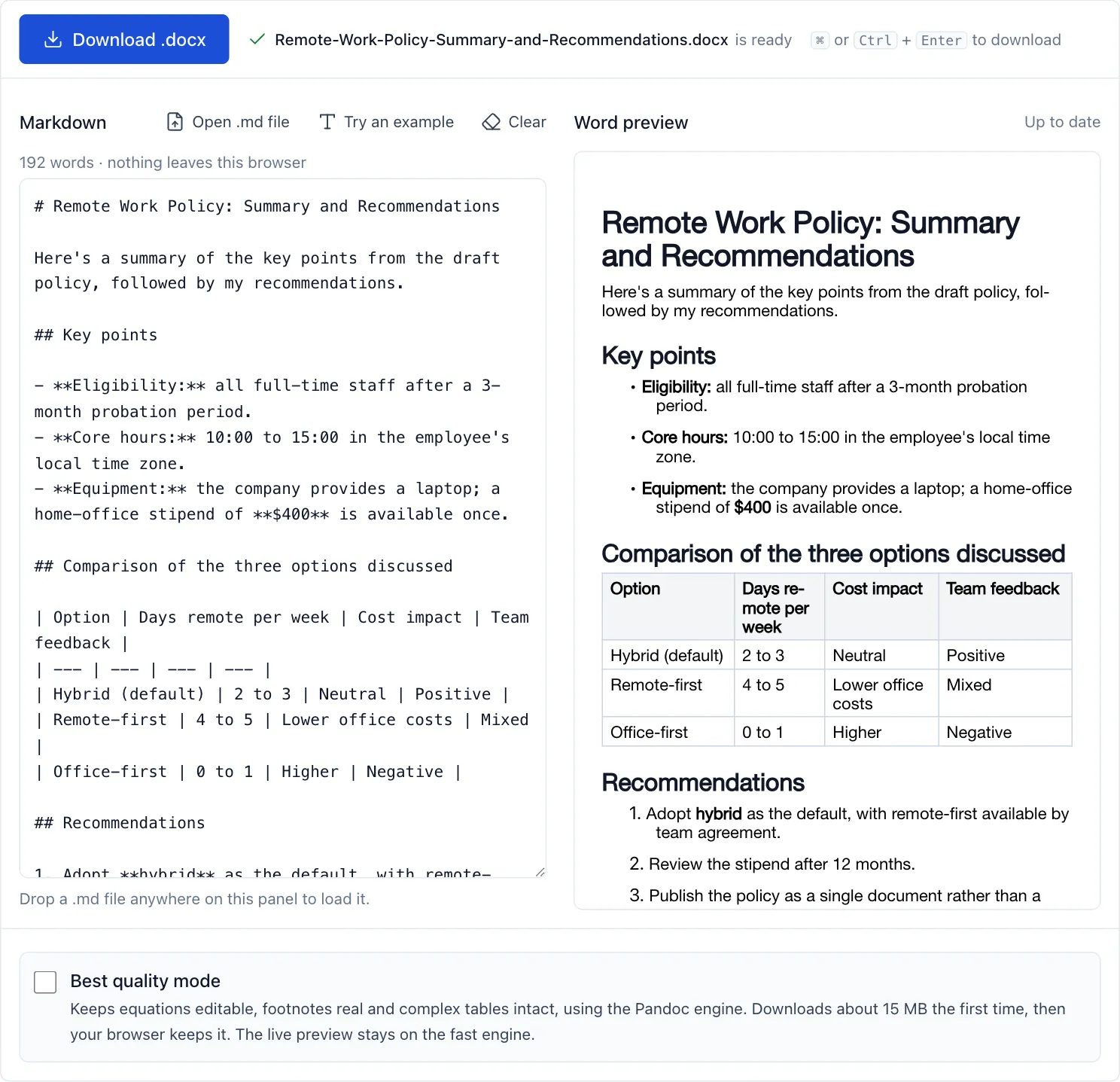
The same answer as Markdown source and as the Word document it becomes. The table on the right is a real Word table, not rows of pipe characters.
When ChatGPT can make the Word file itself
Two parts of ChatGPT now export without a converter. If you wrote the document in Canvas, use its download button: OpenAI added PDF, .docx and Markdown downloads to Canvas in June 2025 (OpenAI announcement). Deep research reports export as PDF, which is fine for reading but not for editing (OpenAI announcement). OpenAI also offers a ChatGPT for Word add-in, which works inside Word itself.
A converter is still the quicker route for an ordinary chat answer, which has no download button, and it is the only one of these that works when you cannot install add-ins on a work machine, want a table or equation to arrive as a real Word object, or would rather not send the text anywhere.
What actually breaks, in order of annoyance
Tables are the worst. A comparison table that looks tidy in chat is really rows of pipe characters and hyphens. Pasted into Word, you get lines of punctuation. You cannot sort it, restyle it, or let it break sensibly across a page. Converting properly turns it into a real Word table with a header row that repeats on every page.
Headings are the most consequential. Losing them costs you the navigation pane, automatic contents pages, and template compatibility. This is the difference that shows up two weeks later when someone asks why the contents page is empty.
Nested lists renumber themselves incorrectly. Word’s list handling is famously particular, and pasted plain-text lists frequently restart at one or lose their indentation.
Code blocks reflow into prose. Without a monospace font and preserved line breaks, code becomes unreadable and, worse, subtly wrong when someone copies it back out.
Doing it in practice
Ask for the whole answer in one message rather than several. Converting one document is faster than stitching four together, and the heading structure stays consistent.
Copy the raw Markdown rather than the rendered view. In ChatGPT, the copy button on a response gives you the underlying Markdown, which is exactly what a converter wants.
Check the warnings after converting. If the answer contained mathematical notation or footnotes, a good converter tells you it simplified them rather than quietly producing something subtly wrong.
Apply your template last. Convert first, then apply your organisation’s Word template. Because the headings are real styles, fonts and spacing update everywhere at once.
Common problems
The output is one long block of text. The response probably had no headings to begin with. Ask for it structured with headings and bullet points, then convert.
Some formatting is missing. Check whether you copied the rendered text or the raw Markdown. Rendered text has already lost the underlying markers.
The table came out as one column. The source table was missing its separator row, the line of hyphens under the header, which is what tells a parser the block is a table at all.
Special characters look wrong. Curly quotes and dashes survive conversion because they are legitimate characters. If they matter, a find and replace in Word handles them in seconds.
Getting a document you can hand over
A converted file is a starting point, not a finished document. Three things turn it into something you can send.
Apply your template. Because the conversion produced real Word heading styles, opening your organisation’s template and applying it restyles the whole document at once. Fonts, colours, spacing and heading sizes all update together. This is the payoff for converting properly rather than pasting.
Add a contents page if it is long. Under References, choose Table of Contents, and Word builds it from the heading structure. If the list comes back empty, the headings are not real styles, which means the document was pasted rather than converted.
Read it as a document rather than as a chat reply. Assistant answers often open with a sentence addressed to you, something like “Here’s a summary of the findings”, and close by offering to do more. Those read naturally in a conversation and oddly in a report. Delete them.
It is also worth checking anything factual before the document leaves your hands. Converting preserves the text exactly, including any mistakes in it, and a well-formatted document carries an authority that makes errors less likely to be questioned.
Frequently asked questions
Does this work with Claude, Gemini and Copilot? Yes: Claude, Gemini and Copilot all format responses in Markdown, so the same approach applies to any of them.
Is my content uploaded anywhere? Not with a browser-based converter. The conversion runs in JavaScript on your own machine. You can confirm this by opening your browser developer tools, switching to the Network tab, and converting a document; no request carries your text.
Can I convert a whole conversation at once? Yes, though the result is usually cleaner if you convert one substantial answer at a time. Concatenated messages tend to have inconsistent heading levels.
What if I need to go back the other way? Use the Word to Markdown converter. That is useful when a colleague edits your document in Word and you need the changes back in a repository or a note-taking app.