Convert your Claude output now
Paste your Markdown below, or load the example to see what the converted document looks like. Nothing is sent anywhere.
Paste or open Markdown to enable
0 words · nothing leaves this browser
Drop a .md file anywhere on this panel to load it.
Word preview
Your document appears here as you type, the way Word will show it.
Claude writes in Markdown, and the quickest way to a Word file is to take the Markdown source of the answer, put it through the Markdown to Word converter, and download the .docx. The result has real heading styles, real tables and real lists, and nothing is uploaded because the conversion runs in your browser.
That is the whole method. What makes Claude slightly different from other assistants is what it produces: longer answers, more sections, tables for anything comparative, and, for document-shaped work, a separate artifact panel with its own copy and download controls. Those are the parts worth understanding, because they decide what you copy.
Where Claude’s formatting comes from
The neat headings and bullet points you see in the chat are a rendering of plain text. Underneath, a heading is a line starting with hashes, emphasis is wrapped in asterisks, and a table is a grid of vertical bars. Word does not read that notation. Paste it straight in and the notation is what you get, character for character.
Claude leans on this notation heavily. Ask for an analysis and you will usually get an introduction, several headed sections, a comparison table and a numbered list of recommendations. Every one of those elements is worth keeping, and every one is lost by pasting.
Copy the right thing: the response or the artifact
Claude gives you two kinds of output, and they are copied differently.
A response in the chat. Use the copy control on the message rather than selecting text with the mouse. The control gives you the raw Markdown; a mouse selection tends to give you the rendered text with the structure flattened, which is the one thing you do not want.
An artifact. When Claude produces a document, report or draft as a standalone piece, it opens in a panel beside the chat. The panel has its own copy control, and for a Markdown artifact a download that saves a .md file. Either gives you the source. The downloaded file can be dropped straight onto the converter; the copied text can be pasted into it.
If you are not sure which you have, look for the panel. If the content is in a panel with a title of its own, it is an artifact and its controls are the ones to use.
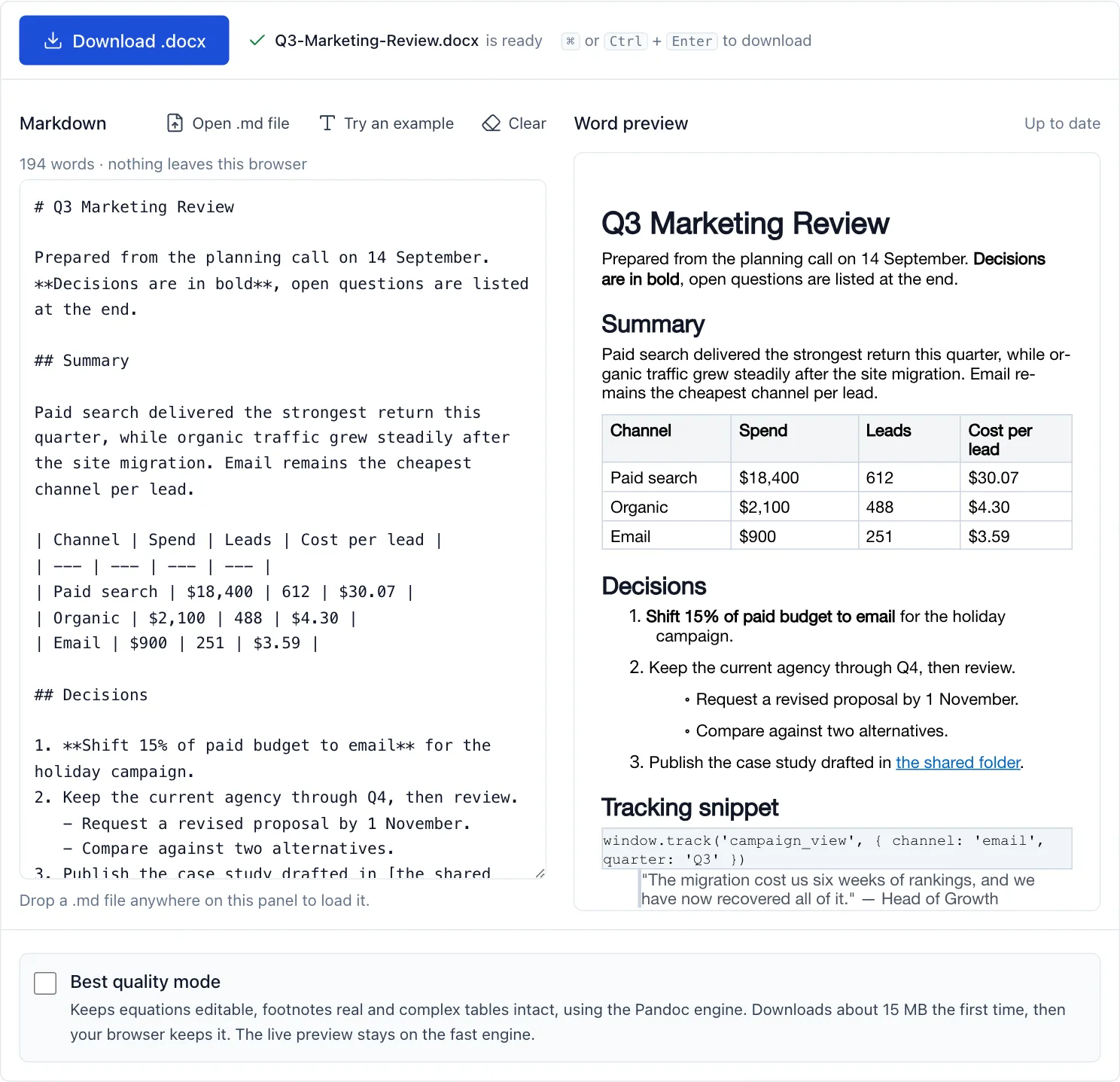
A structured document as Markdown and as the Word file it converts to. Word’s navigation pane will list every heading on the right.
Converting an artifact
Artifacts are where the conversion pays off most, because they are the documents Claude has put the most structure into. A typical one has a title heading, sections and subsections, at least one table, and a closing summary or list of next steps.
Download or copy the Markdown, convert it, and open the Word file. Turn on Word’s navigation pane: every heading Claude wrote should be listed, which confirms the structure survived. Then apply whatever template your organisation uses. Because the headings are real styles, the template’s fonts, colours and spacing apply automatically.
What Claude produces that deserves a second look
Comparison tables. Claude reaches for a table whenever it is weighing options. In Word these become tables you can sort, restyle and let break across pages with the header row repeating. Check that each table in the source has a separator line under its header; a table that was edited by hand in the chat sometimes loses it, and without it the converter sees paragraphs rather than a grid.
Recommendations with sub-points. Numbered lists with nested bullets are common in Claude’s conclusions. They convert to real multi-level Word lists, so numbering behaves when you add an item later.
Code, queries and configuration. Anything in a fenced block keeps its monospace font and its indentation. Whitespace-sensitive content survives, which it would not if pasted as prose.
Section headings from a multi-turn conversation. If the document was built across several messages, the heading levels may not agree with each other. One section starting at a second-level heading and the next at a third produces an uneven contents page. Fix the levels in the Markdown before converting; it takes a minute.
Anything cut off by a length limit. A long answer that stopped mid-table or mid-list converts to a document that stops in the same place. Ask Claude to continue, assemble the Markdown, and convert once.
A working routine
Ask for the complete document in one artifact where you can, so heading levels stay consistent and you convert a single file.
Convert before you edit. Editing a properly structured Word document is easy; repairing structure after you have started editing is not.
Read the warnings the converter shows. If the answer contained mathematical notation, footnotes or a diagram, the warning tells you what was simplified and how to get it back, rather than leaving you to find out later.
Keep the Markdown. If the document needs a substantial revision, editing the source and reconverting is usually quicker than reworking the Word file, and you keep a plain-text version that fits in version control.
What does not survive
Some things Claude can write have no Word equivalent, and the converter tells you when it meets them:
- Mathematical notation in LaTeX stays as text in fast mode. Best quality mode turns it into editable Word equations.
- Mermaid diagrams are text descriptions of pictures. Both modes keep the description as a code block, because neither Word nor Pandoc can draw it. Export the diagram as an image from the tool that rendered it and insert that in Word.
- Footnotes stay inline in fast mode and become real Word footnotes in best quality mode.
- References to the conversation, such as “as in my previous answer”, mean nothing in a standalone document and need rewording.
Common problems
The document is one long paragraph. The rendered text was copied rather than the source. Use the copy control or the artifact download.
Vertical bars instead of a table. The table was pasted into Word directly, or it lost its separator line. Convert instead of pasting, and check the line under the header.
Asterisks around words. Raw Markdown in an application that does not read it. Same fix.
Numbering restarts partway through. A list broken by a paragraph, or pasted as plain text. A converted list is a real Word list and keeps counting.
The contents page is uneven. Heading levels drifted across messages. Adjust them in the source.
Frequently asked questions
Does this work with Claude’s artifacts?
Yes, artifacts convert the same way. Download the artifact as a .md file or copy it from the panel, then convert. Artifacts are usually the best-structured output Claude produces, so they convert particularly well.
Is the response sent anywhere when I convert it? No, the response is never sent anywhere. The converter runs in your browser and never uploads the text, which matters when the answer is built on confidential material.
What about ChatGPT, Gemini and Copilot? They write Markdown too, so the same method applies. The ChatGPT guide covers the details that differ.
Can I get an edited Word file back into Markdown? Yes, with the Word to Markdown converter. That is useful when a colleague has edited the document in Word and you want to continue in Claude or in a repository.