Convert your Markdown now
Paste your Markdown below, or load the example to see what the converted document looks like. Nothing is sent anywhere.
Paste or open Markdown to enable
0 words · nothing leaves this browser
Drop a .md file anywhere on this panel to load it.
Word preview
Your document appears here as you type, the way Word will show it.
Images are the one part of a Markdown conversion that rarely works exactly as people expect. A Markdown file does not contain its pictures; it contains references pointing at them. When a converter runs in your browser, it can only reach files the browser can actually read, which is why alt text often survives while the picture itself does not.
Understanding what a converter can and cannot reach makes the workaround obvious.
What a Markdown image reference actually is
The text in square brackets is alt text. The part in parentheses is a path or URL. The image data is not in the file; the file merely says where the image lives.
This is why a .md file is a few kilobytes while the document it describes might be several megabytes. It is also why moving a Markdown file to a different folder breaks its images.
Three kinds of reference, three outcomes
Local relative paths like ./images/chart.png point at a file on disk. A browser-based converter cannot read arbitrary files from your filesystem; that restriction is a deliberate security boundary, not a limitation of the tool. The reference and its alt text are preserved, and you place the image in Word afterwards.
Remote URLs like https://example.com/chart.png point at a file on the internet. A converter could fetch these, but a converter that promises your content never leaves your browser should not be making network requests on your behalf. Fetching the image would tell that server you are converting the document, which is exactly the kind of leak the promise is meant to prevent.
Data URIs embed the image directly in the Markdown as base64 text. These are entirely self-contained, so nothing external is needed. They make files enormous and unreadable, but they do travel with the document.
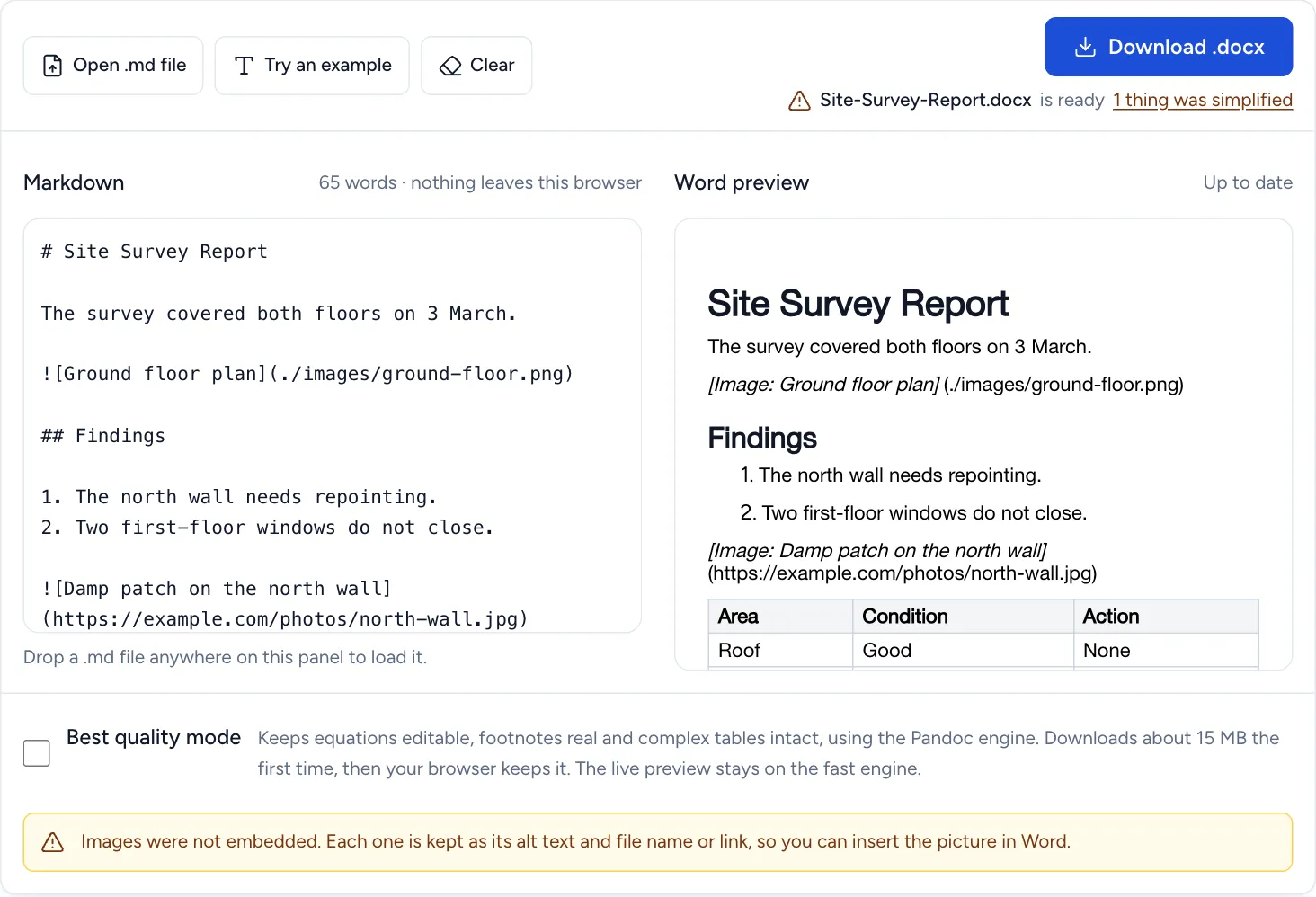
Two image references after conversion. Each one keeps its alt text and its path or link, which marks where the picture goes, and the converter says plainly that the images were not embedded.
The practical approach
For a document with a handful of images, convert the text first and place the pictures afterwards. Convert with the Markdown to Word converter, open the result in Word, and use Insert then Pictures at each point where the alt text appears. The alt text acts as a marker telling you what belongs where, and it is worth keeping in the Word document afterwards for accessibility.
For a document that is mostly images, a command line tool is the better choice. Pandoc runs on your machine with full filesystem access, so it can read local image files and embed them directly. That is genuinely the right tool for a heavily illustrated document.
For a document you need to send immediately, consider whether the images are load-bearing. Screenshots illustrating a point often are; decorative headers usually are not.
Keep the alt text
It is tempting to delete the alt text once you have inserted the real image. Do not. Word has an alt text field for exactly this purpose, and filling it in is what makes the document usable with a screen reader. The alt text your Markdown already contains is the text that belongs there.
Right-click the image in Word, choose View Alt Text, and paste it in. It takes seconds and it is the difference between a document that works for everyone and one that does not.
Sizing
Markdown has no standard way to specify image dimensions. Some tools support extensions for it, but nothing portable exists. Images inserted into Word arrive at their natural size, which for a modern screenshot is often far wider than the page.
Select the image in Word and drag a corner handle, holding Shift to keep the proportions. For a document with many images, set the size on the first one, then use Format Painter, or define a picture style and apply it.
Common problems
The image is missing but the caption is there. Expected behaviour for a local path. Insert the file at that point.
The image is enormous. Natural size exceeded the page width. Resize from a corner handle.
Images appear in the wrong order. Usually a sign that images were inserted into a document while it was still being edited. Convert first, finish the text, then place images.
The file is huge. Word embeds full-resolution images by default. Use Compress Pictures under Picture Format to reduce it substantially.
Working with screenshots
Documentation is mostly screenshots, and they have their own problems beyond the reference question.
They are usually too big. A screenshot from a high-resolution display can be three thousand pixels wide. Inserted into Word at natural size it dwarfs the page. Resize from a corner handle with Shift held to keep the proportions, and set a standard width for the first one so the rest can match.
They make files enormous. Word embeds images at full resolution by default. A twenty-page document with thirty screenshots can reach fifty megabytes, which is more than many mail servers accept. Select an image, open Picture Format, choose Compress Pictures, and apply to all images at a sensible resolution. Documents routinely drop by ninety percent.
They need captions. Markdown alt text describes an image for someone who cannot see it. A caption describes it for everyone. In Word, right-click and choose Insert Caption to get numbered figures that renumber themselves as you add more.
Order matters more than you expect. Insert images last, after the text is final. Inserting them early means repositioning every one of them when the text around them moves.
For a document where the screenshots genuinely are the content, converting with Pandoc locally so images are embedded automatically saves a great deal of manual placement.
Frequently asked questions
Why can the converter not just download my images? It could, but that would mean sending a request to another server while claiming your content stays private. Keeping that promise strictly is more valuable than the convenience.
Do images survive going the other way? Converting Word to Markdown with the Word to Markdown converter produces image references, but the image data stays in your browser rather than being uploaded somewhere.
What about diagrams written as code? Mermaid and similar formats are text descriptions of pictures, so they convert as code blocks rather than rendered images. Render them to an image file first if you need the picture.
Is there a way to avoid this entirely? Use data URIs, or use Pandoc locally. Both trade convenience for completeness.
Alt text is worth the minute it costs
It is the part everyone skips, and it is the part that decides whether the document works for a reader using a screen reader. Your Markdown already contains alt text; carrying it into Word takes a right-click.
Good alt text describes what the image conveys, not what it depicts. “Revenue grew steadily through Q3 before dropping in December” is more useful than “line chart”. If the image is purely decorative, marking it as decorative is the correct choice and tells the screen reader to skip it.