Word to Markdown Converter
Turn a Word document into clean, readable Markdown. Headings, lists, tables and links are preserved. The file is read in your browser and never uploaded.
Convert Word to Markdown Online
Drop a .docx file here
No file? Copy in Word or Google Docs and paste on this page. Read in this browser. Never uploaded.
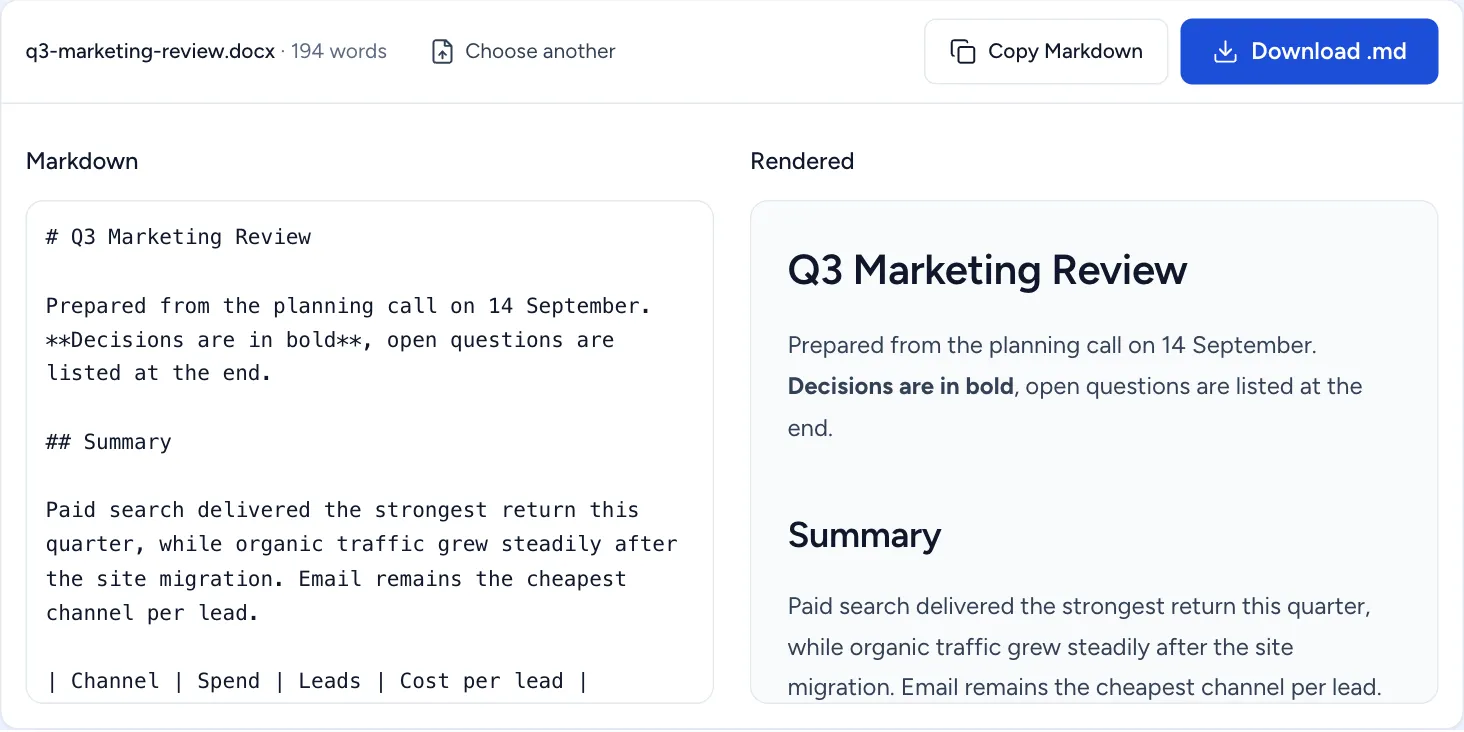
Most Word to Markdown converters either upload your document to a server or return a mess of stray bold and italic markers. This one does neither. It reads the styles inside the .docx file to work out what each paragraph actually is, so a heading becomes a heading rather than a bold line of text.
How to Convert Word to Markdown
There is nothing to install and no account to create. Converting Word to Markdown takes three steps and the whole process happens on this page.
-
Choose your Word file
Drop a .docx file onto the converter or pick one from your computer. The file is read in your browser.
-
Review the Markdown
The converted Markdown appears immediately, along with any notes about formatting that could not be represented.
-
Copy or download
Copy the Markdown to your clipboard or save it as a .md file.
What Gets Converted
The important detail is how the converter decides what something is. Rather than copying visual formatting, it reads the Word styles applied to each paragraph. A paragraph styled as Heading 1 becomes a Markdown heading. A paragraph that merely looks like a heading, because someone made it large and bold by hand, is just a paragraph as far as the file is concerned, and converts as one.
This is why output from this converter tends to be clean rather than littered with stray emphasis. Tools that copy formatting produce Markdown full of bold and italic markers wrapped around fragments of sentences. Reading the underlying structure instead gives you a document you can actually edit.
- Heading levels 1 to 6, from real Word heading styles
- Bulleted and numbered lists, including nesting
- Tables, converted to GitHub Flavored Markdown tables
- Bold, italic and strikethrough
- Hyperlinks, with their link text intact
- Images, as Markdown image references
- Blockquotes and code formatting
Why Convert Word to Markdown?
Word is built for producing printed documents. Markdown is built for text that has to live somewhere else afterwards, and that difference drives most Word to Markdown conversions. The destination is nearly always a system that wants plain text it can read, diff and publish.
Moving documentation into a repository
A .docx file in version control is effectively opaque. You cannot see what changed between two commits, you cannot review it line by line, and merge conflicts are unresolvable. Markdown is plain text, so diffs are readable and review works normally.
Publishing to a website
Every static site generator, from Astro to Hugo to Jekyll, takes Markdown as input. Converting existing Word documents is usually the fastest route to getting years of accumulated material onto a website without retyping it.
Feeding documents to an AI assistant
Pasting a Word document into a chat window frequently loses its structure, and the assistant sees an undifferentiated wall of text. Markdown keeps headings, lists and tables explicit, so the model can tell a heading from a table cell. For summarising or restructuring a long document, converting it first noticeably improves the result.
Cleaning Up Word's Formatting
Word documents accumulate artefacts, especially ones that have been edited by several people or pasted together from other sources. Knowing what to expect makes the cleanup quick.
Smart quotes and special characters
Word silently replaces straight quotes with curly ones, hyphens with en and em dashes, and three dots with an ellipsis character. These survive conversion because they are legitimate characters, but they can look wrong in a code repository. A find and replace afterwards handles them.
Manual formatting instead of styles
This is the big one. If a document was formatted by selecting text and clicking bold rather than by applying styles, there is no structure for the converter to read. The fix is in Word, not here: apply proper heading styles first, then convert. It takes a few minutes and transforms the result.
Empty paragraphs and manual spacing
People often press Enter several times to push content down a page. Those empty paragraphs convert into stretches of blank lines. They are harmless and easy to strip out, but worth knowing about before you wonder why the output looks sparse.
Common Word to Markdown Problems
When a Word to Markdown conversion disappoints, the cause is almost always in the source document rather than the converter. These three account for most of it.
Everything came out as plain paragraphs
The document has no real heading styles. Open it in Word, click into each heading, and check the style box in the Home ribbon: if it says Normal rather than Heading 1, the structure exists only visually. Applying the correct styles takes a few minutes and is the single highest-value thing you can do before converting Word to Markdown.
The table looks wrong
Markdown tables are far simpler than Word tables. They cannot express merged cells, cells that span rows, or nested tables, so those get flattened. If a table carries real meaning through its merged structure, it may be better to redesign it as a simple grid before converting, or keep it as an image.
Deleted text reappeared
This is tracked changes. If revisions were never accepted, the deleted text is still stored in the file, and converting can surface it. Always accept or reject all changes in Word first. It is worth checking carefully when the document contains anything confidential, because text you believed was removed may still be present.
Frequently Asked Questions
Is the Word to Markdown converter free?
Yes. There is no signup, no file limit and no watermark. The conversion runs in your browser, so it costs us nothing to offer and nothing to scale.
Is my Word document uploaded anywhere?
No. The file is read directly by your browser using the File API and converted on your own machine. It is never transmitted to us or to any third party. Open the Network tab in your developer tools while converting and you will see no upload request.
Why does it reject my .doc file?
The older .doc format is a completely different binary format from .docx, and it cannot be read reliably in a browser. Open the file in Word and use Save As to store it as .docx, then convert it here. The converter tells you this rather than failing silently.
Will my Word tables become Markdown tables?
Yes. Word tables are converted into GitHub Flavored Markdown tables, with the first row treated as the header. Because Markdown tables are much simpler than Word tables, merged cells are flattened into ordinary cells.
What happens to images in the document?
Images are converted to Markdown image references. Since everything happens locally, the image data stays in your browser rather than being uploaded to an image host. For a document that is mostly images, expect to place the files yourself afterwards.
Does it keep my headings?
Yes, provided they are real Word heading styles. A paragraph manually made large and bold looks like a heading to a person but is plain formatted text to software, so it converts as a paragraph. That is the most common reason a converted document loses its structure.
What happens to tracked changes and comments?
Markdown has no equivalent of tracked changes or margin comments, so they are not carried across. Accept or reject all changes in Word before converting, otherwise the result may include text you intended to delete.
Can I convert several documents at once?
Not currently. The converter handles one document at a time. For bulk conversion of a whole folder, a command line tool such as Pandoc is a better fit than a web page.
Which Markdown flavour does it produce?
GitHub Flavored Markdown, which is the dialect used by GitHub, GitLab, Obsidian, Notion imports and most static site generators. Headings use hash characters and code blocks use fences, so the output is portable almost everywhere.
Going Further
Three guides cover the questions that come up once the basic conversion works.
- Converting Word to Markdown with Pandoc — the command line route, and when it beats a browser converter.
- Keeping tables intact — what a Word table becomes in Markdown, and the merged cells that cannot survive.
- Why formatting disappears — the causes that apply in both directions.
Need the Other Direction?
If you have Markdown and need a Word document instead, the Markdown to Word converter does the reverse: it builds a genuine .docx file with real Word heading styles, tables and lists. It is the tool to reach for when you have drafted something in Markdown, or received an answer from an AI assistant, and need to hand it to someone who works in Word.
Both directions run entirely in your browser, so you can move a document back and forth without any of it being sent to a server. See the privacy policy for exactly what that means, and how to verify it yourself.