Convert your Markdown now
Paste your Markdown below, or load the example to see what the converted document looks like. Nothing is sent anywhere.
Paste or open Markdown to enable
0 words · nothing leaves this browser
Drop a .md file anywhere on this panel to load it.
Word preview
Your document appears here as you type, the way Word will show it.
There are three ways to get a Markdown file into Google Docs, and they do not give the same result. Docs can paste and import Markdown on its own, which is fine for headings, emphasis, lists and links. For anything with tables, code blocks or images, the reliable route is to convert the Markdown to a .docx first and open that in Docs, because Docs reads Word files far more completely than it reads Markdown.
This guide walks through all three routes, says what each one gets right, and ends with the problems people report most often.
Route 1: let Google Docs read the Markdown
Google added Markdown support to Docs in 2024. With it switched on, pasting Markdown into a document turns it into formatted text, a .md file can be opened as a document, and a finished document can be downloaded as Markdown again.
The switch lives in the document’s preferences: open the Tools menu, choose Preferences, and tick the option to enable Markdown. Once it is on, pasting text that contains # headings and **bold** gives you real headings and real bold rather than the raw characters.
Where this route is strong: prose. Headings map to Docs heading styles, emphasis and links come through, and bulleted and numbered lists become proper lists. If your document is an article or a set of notes, this is the quickest path and there is nothing more to do.
Where it is worth checking the result: tables, fenced code blocks and images. Support for these has changed more than once, so paste a document that contains them and look before you trust it. A table that arrives as lines of pipe characters, or a code block that loses its monospace font, means this route is not enough for that document.
Route 2: convert to Word first, then open in Docs
Google Docs opens .docx files natively. Upload one to Drive and open it, or use File and then Open inside Docs, and Docs converts the Word structure into its own: heading styles become Docs headings, tables become real tables you can resize and restyle, and lists keep their nesting.
That makes a two-step route the most dependable one for structured documents. First, paste or drop the Markdown into the Markdown to Word converter and download the .docx. The conversion runs in your browser, so nothing is uploaded until you choose to put the file in Drive. Second, open the .docx in Docs and, if you want a native Google document rather than a Word file living in Drive, choose Save as Google Docs from the File menu.
The advantage is completeness. Every table becomes a table, every code block keeps its monospace font, and heading levels survive intact. The cost is one extra download, which takes a couple of seconds.
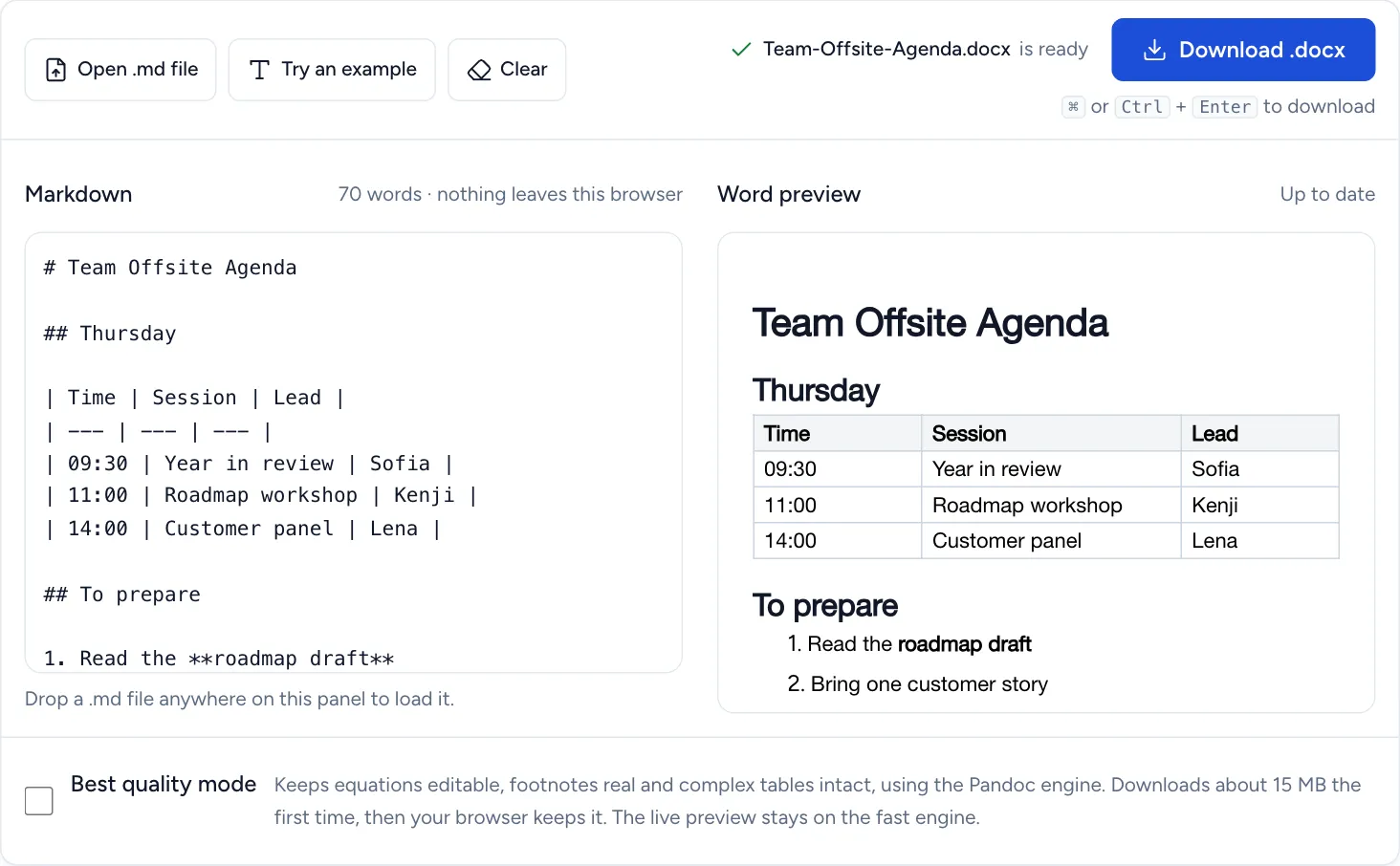
Step one of the two-step route. The table and the list are real Word structures, which is what lets Google Docs open them as a real table and a real list.
Route 3: upload the Markdown file to Drive
You can also upload the .md file itself to Drive and open it with Docs. This uses the same Markdown reader as Route 1, so it has the same strengths and the same gaps, and it is mostly useful when the file already lives in Drive. If the result looks wrong, fall back to Route 2.
Which route to use
| Your document | Best route |
|---|---|
| Notes or an article: headings, lists, links | Route 1, paste with Markdown enabled |
| Anything with tables | Route 2, convert to .docx first |
| Code blocks that must stay monospace | Route 2 |
| Images referenced by path | Route 2, then insert the image files in Docs |
| A file already sitting in Drive | Route 3, and check the result |
Getting the document back out
Docs can download a document as Markdown from the File menu, under Download. It can also download as a Word file. If the Markdown export gives you more formatting noise than you want, download the .docx instead and run it through the Word to Markdown converter, which maps Docs heading styles to Markdown headings rather than copying visual formatting.
Reviewing and sharing once the document is in Docs
The reason to put Markdown into Google Docs is usually what happens next: someone else needs to read it, comment on it or edit it. Docs’ suggesting mode is the equivalent of Word’s track changes, and comments can be anchored to any word. Both work only when the document has real structure, which is another argument for the .docx route when the content is more than prose: a table that arrived as text cannot be commented on cell by cell.
If the document started life in Markdown and will go back there, share a copy rather than the original, and export the reviewed version when the comments are resolved. Docs keeps a version history, so an earlier state is always recoverable.
Common problems
Headings are not styled. The text was pasted with Markdown support switched off, so Docs treated it as plain text. Turn the preference on and paste again, or use Route 2.
The table came through as text. Docs’ Markdown reader did not recognise it. Check that the table has its separator row, the line of hyphens under the header, then use Route 2, which builds a real Word table that Docs opens correctly.
Images are missing. A Markdown image is a reference to a file, not the file itself. Neither Docs nor a converter can fetch a file from your disk, so insert the images in Docs after the text is in place. The guide to Markdown with images explains what happens to local files, remote URLs and embedded data.
Code lost its formatting. Docs has no default code style, so pasted code becomes ordinary paragraphs. Going through a .docx keeps the monospace font. If you want Docs’ own code block, insert one from the Building blocks menu and paste the code into it.
Numbered lists restart. Usually a sign the list was pasted as plain text. Route 2 builds real list structure that Docs preserves.
Frequently asked questions
Does Google Docs support Markdown natively? Yes, for pasting, importing and exporting, once the option is enabled in the document preferences. Coverage of tables, code and images has varied, so check those after pasting.
Is converting to Word first a workaround?
It is the more complete path rather than a workaround. Docs reads .docx structure fully, while its Markdown reader covers the common constructs and not always the rest.
Is my document uploaded when I convert it?
Not by the converter. It runs in your browser and produces the .docx locally. The document only reaches Google when you upload the result to Drive.
Can I go from Google Docs back to Markdown? Yes, Google Docs can go back to Markdown. Use the Markdown download in Docs, or download as Word and convert with the Word to Markdown converter, which tends to give cleaner output for documents that used Docs heading styles.